SSD vs HDD: Which Should You Buy?
SSD vs HDD explained: how solid-state and hard drives really differ, why one feels instant, and which to buy for speed or cheap storage in 2026.
Quick answer
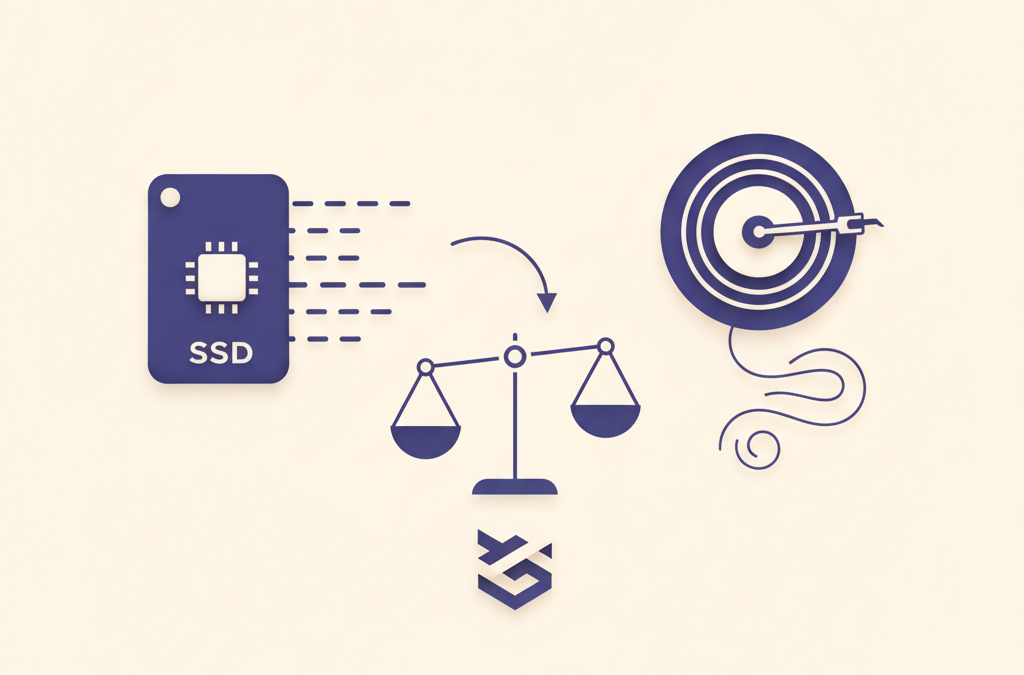
In the SSD vs HDD choice, pick an SSD for the drive that runs your computer: with no moving parts it accesses data almost instantly, so the machine boots fast and feels responsive. Choose an HDD only for cheap bulk storage of large archives, ideally alongside an SSD rather than instead of one.
When you buy or upgrade a computer, one storage decision affects daily speed more than almost any other: SSD vs HDD, meaning a solid-state drive versus a traditional hard drive. They store the same files, but they work in fundamentally different ways, and that difference is why one machine feels instant and another feels like it is wading through mud. This guide explains how each works, where each still makes sense, and how to choose without overthinking it.
SSD vs HDD: what is the actual difference?
A traditional hard drive, or HDD, stores data on spinning magnetic platters, with a mechanical arm that physically moves to read and write. It is essentially a tiny record player. Because parts have to physically move to reach your data, there is always a small delay, and that delay repeats constantly during everyday use.
A solid-state drive, or SSD, has no moving parts at all. It stores data in flash memory chips and accesses any piece of it electronically, almost instantly. Nothing has to spin up or move into position. This single architectural difference, moving parts versus none, is the source of every practical advantage and trade-off between the two.
Why does an SSD make a computer feel so much faster?
The reason is that most of what makes a computer feel slow is waiting on storage. Starting up, opening applications, loading files, and switching between programs all involve reading many small pieces of data. A hard drive’s mechanical arm has to physically seek out each one, and those tiny delays pile up into the lag you feel.
An SSD serves all those reads electronically and near-instantly, so the waiting largely disappears. A computer boots in a fraction of the time, applications open promptly, and the whole system feels responsive. This is why swapping a hard drive for an SSD is the most transformative upgrade you can make to an aging machine, and why it does more for perceived speed than a faster processor would.
If a computer with decent specs still feels slow, a mechanical hard drive is the most likely reason. No processor upgrade fixes the constant waiting that a hard drive causes, but an SSD does.
Is an SSD more reliable than a hard drive?
In everyday terms, yes, especially in a laptop. Because an SSD has no moving parts, it is far more resistant to being bumped, dropped, or jostled while running, which is exactly what happens to portable machines. A hard drive’s spinning platters and moving arm are vulnerable to physical shock, and mechanical parts wear over time.
Neither type is immortal, and any drive can fail, which is why you should keep backups of important data regardless of what you use. But for a device that travels, the shock resistance of an SSD is a meaningful practical advantage on top of the speed.
Do hard drives still have any advantages?
Yes, in a narrowing but real niche. Hard drives remain cheaper for very large amounts of storage. If your priority is holding an enormous library of files, such as years of photos and videos or a large media collection, and you care more about total capacity per dollar than speed, a hard drive still offers more room for the money.
This is why hard drives persist mainly in two roles: bulk external storage for archives and backups, and large-capacity storage in desktop machines where the goal is to hoard data cheaply. For the drive that runs your operating system and the programs you use every day, though, the speed of an SSD wins decisively.
Are all SSDs the same speed?
No, and this trips people up. SSDs come in different forms that connect to the computer in different ways, and some are considerably faster than others. Without getting lost in the terminology, the key point is that the older style of SSD connection is much faster than a hard drive but slower than the newer style, which uses a faster interface designed specifically for flash memory.
Here is the reassuring part: for everyday use, the jump from any hard drive to any SSD is enormous, while the jump between the two SSD types is far smaller and mostly noticeable when moving very large files or doing demanding professional work. So the decision that matters most is simply getting onto an SSD at all. If you are choosing between SSD types and the faster one is available at a reasonable price, take it, but do not agonize over it.
Do SSDs wear out faster than hard drives?
This concern comes up often, usually based on old information, so it is worth addressing directly. The flash memory in an SSD can only be written to a limited number of times, which years ago fueled worries that these drives would wear out quickly. In practice, that worry does not match how ordinary people use a computer. The write limits on modern drives are high enough that a typical user, browsing, working with documents, and installing the occasional program, would take many years, likely well beyond the useful life of the whole computer, to reach them.
SSDs also manage wear intelligently, spreading writes evenly across the memory so no single area is exhausted early, and they tend to warn you as they approach the end of their life rather than failing without notice. For the vast majority of people, an SSD will comfortably outlast the machine it is in. The main exceptions are specialized workloads that write enormous amounts of data continuously, which most home and office users never come close to. As with any drive, keep backups of anything important, and you have nothing to worry about.
Can you have both an SSD and a hard drive?
On many desktops and some larger laptops, yes, and it is an excellent arrangement. You put the operating system, applications, and the files you use daily on a fast SSD so the machine feels quick, and you use a large, cheaper hard drive for bulk storage of things that do not need speed, like archives and media libraries. This gives you responsiveness where it counts and inexpensive capacity where it does not.
On thin and light laptops this often is not an option, since they typically have room for only one drive, usually an SSD. In that case, choose enough SSD capacity for your needs and use an external hard drive or cloud storage for large archives.
How should you choose?
For almost everyone, the guidance is simple:
- For the main drive that runs your computer, choose an SSD. The responsiveness it gives is worth it, and it is the difference between a machine that feels fast and one that feels slow.
- If you need to store very large amounts of data cheaply and speed does not matter for it, a hard drive is a sensible choice for that bulk storage, ideally alongside an SSD rather than instead of one.
- If you are reviving an older computer that still has a hard drive, upgrading it to an SSD is the highest-value change you can make, often for modest cost. Our guide to speeding up an old laptop covers this alongside the free steps to try first.
When you are shopping for a new machine, storage type deserves a place near the top of your checklist, not an afterthought. Our complete guide to buying a laptop puts it in context with the other specs that actually matter, so you spend your money where it makes the biggest difference to how the machine feels every day.
Frequently asked questions
What is the difference between an SSD and a hard drive?
A hard drive stores data on spinning platters with a moving arm, so reaching data takes a small mechanical delay. An SSD has no moving parts and accesses data electronically and almost instantly, which is why it feels so much faster.
Why does an SSD make a computer feel faster?
Most of what makes a computer feel slow is waiting on storage. A hard drive's arm physically seeks each piece of data; an SSD serves reads near-instantly, so starting up, opening apps, and switching programs stop feeling sluggish.
Do hard drives still have any advantage?
Yes, cheaper capacity for very large amounts of data. For bulk storage like big photo, video, or media libraries where speed does not matter, a hard drive offers more room for the money, ideally alongside an SSD.
Are all SSDs the same speed?
No. Some use a faster interface than others, but for everyday use the jump from any hard drive to any SSD is enormous, while the difference between SSD types is far smaller and mostly matters for very large files or professional work.
Can I use both an SSD and a hard drive?
On many desktops and some larger laptops, yes. Put the system, apps, and daily files on a fast SSD and use a large cheap hard drive for archives. Thin laptops usually have room for only one drive, typically an SSD.
Related
The On-Page SEO Checklist for Every Page You Publish
An on-page SEO checklist for the fundamentals that move rankings: titles, headings, internal links, indexability, and myths like keyword density cleared out.

Travel Insurance Explained: What It Covers and How to Choose
A plain-language guide to what travel insurance covers, whether travel insurance is worth it, and how to choose a policy by matching…

How to Price Your Product or Service Without Guessing
How to price a product without guessing: work out your true cost to deliver, weigh the value to the customer, and set…